作者归档:Dasmz

动态分区LVM方式挂载两块新增的硬盘到系统

前缀、文档修改记录

20210518 初始化编辑此文章,完稿
20251004 更新此文章,模拟环境Debian 系统

章节1、需求描述

使用标准的 LVM方式挂载Linux系统的磁盘到系统

章节2、更新依赖包

apt update
apt install lvm2 xfsprogs

章节3、操作步骤

# 第一步
# 查看系统内可用的硬盘
root@SERVER:~# fdisk -l
...
Disk /dev/vdb: 2 GiB, 2147483648 bytes, 4194304 sectors  #新增的硬盘1,大小2GB
Disk model: HARDDISK        
Units: sectors of 1 * 512 = 512 bytes
Sector size (logical/physical): 512 bytes / 512 bytes
I/O size (minimum/optimal): 512 bytes / 512 bytes
Disklabel type: dos
Disk identifier: 0xacc559c1
Device     Boot Start     End Sectors Size Id Type
/dev/vdb1        2048 4194303 4192256   2G 8e Linux LVM
Disk /dev/vdc: 3 GiB, 3221225472 bytes, 6291456 sectors  #新增的硬盘1,大小3GB
Disk model: HARDDISK        
Units: sectors of 1 * 512 = 512 bytes
Sector size (logical/physical): 512 bytes / 512 bytes
I/O size (minimum/optimal): 512 bytes / 512 bytes
# 第二步
# 依次对刚刚的/dev/vdb  /dev/vdc 进行文件系统的创建
root@SERVER:~# fdisk /dev/vdb 
p   #这个地方如果显示了分区,记得按d逐个删除掉
n
[enter]
[enter]
[enter]
[enter]
t
L
8e
p 
w
root@SERVER:~# fdisk /dev/vdc
p   #这个地方如果显示了分区,记得按d逐个删除掉
n
[enter]
[enter]
[enter]
[enter]
t
L
8e
p 
w
root@SERVER:~# 
root@SERVER:~# fdisk -l
...
Disk /dev/vdb: 2 GiB, 2147483648 bytes, 4194304 sectors
Disk model: HARDDISK        
Units: sectors of 1 * 512 = 512 bytes
Sector size (logical/physical): 512 bytes / 512 bytes
I/O size (minimum/optimal): 512 bytes / 512 bytes
Disklabel type: dos
Disk identifier: 0xec2d5eb5
Device     Boot Start     End Sectors Size Id Type
/dev/vdb1        2048 4194303 4192256   2G 8e Linux LVM
Disk /dev/vdc: 3 GiB, 3221225472 bytes, 6291456 sectors
Disk model: HARDDISK        
Units: sectors of 1 * 512 = 512 bytes
Sector size (logical/physical): 512 bytes / 512 bytes
I/O size (minimum/optimal): 512 bytes / 512 bytes
Disklabel type: dos
Disk identifier: 0x228299a9
Device     Boot Start     End Sectors Size Id Type
/dev/vdc1        2048 6291455 6289408   3G 8e Linux LVM
...
root@SERVER:~#
# 第三步
# 物理卷是将在LVM配置中使用的实际存储设备,它可以是整个磁盘,
# pvcreate命令初始化这些磁盘,以便它们可以构成卷组
# 如果没有该命令,使用apt-get install lvm2 xfsprogs 安装组件
root@SERVER:~# pvcreate /dev/vdb1 /dev/vdc1
  Physical volume "/dev/vdb1" successfully created.
  Physical volume "/dev/vdc1" successfully created.
root@SERVER:~# 
root@SERVER:~# pvs
  PV         VG Fmt  Attr PSize  PFree 
  /dev/vdb1     lvm2 ---  <2.00g <2.00g
  /dev/vdc1     lvm2 ---  <3.00g <3.00g
root@SERVER:~# 
# 第四步
# 物理卷被合并为卷组(VG)。它创建了一个磁盘空间池,可以在其中分配逻辑卷
# 逻辑卷被分配到与物理盘区大小相同的逻辑盘区中。
# 因此,卷大小对于卷组中的所有逻辑卷都相同。卷组将逻辑盘区映射到物理盘区
root@SERVER:~# vgcreate vg01 /dev/vdb1 /dev/vdc1
  Volume group "vg01" successfully created
root@SERVER:~# vgs
  VG   #PV #LV #SN Attr   VSize VFree
  vg01   2   0   0 wz--n- 4.99g 4.99g
root@SERVER:~# 
# 第五步
# 卷组分为逻辑卷。因此,如果您早先创建了vg01,则可以从该VG创建逻辑卷
root@SERVER:~# lvcreate -l 100%VG -n lv01 vg01
  Logical volume "lv01" created.
root@SERVER:~# lvs
  LV   VG   Attr       LSize Pool Origin Data%  Meta%  Move Log Cpy%Sync Convert
  lv01 vg01 -wi-a----- 4.99g                                                    
root@SERVER:~# 
# 如果是指定大小为50G,命令语法为
root@SERVER:~# lvcreate -L 50G -n lv01 vg01
# 第六步
# 创建需要挂在数据盘的分区目录
root@SERVER:~# mkdir -p /u1
# 第七步
# 创建需要LV盘的文件系统
root@SERVER:~# mkfs -t xfs  /dev/vg01/lv01
mke2fs 1.44.5 (15-Dec-2018)
Found a dos partition table in /dev/vg01/lv01
Proceed anyway? (y,N) y
Creating filesystem with 1308672 4k blocks and 327680 inodes
Filesystem UUID: e0fa3f74-3600-408a-b1c5-324694303b65
Superblock backups stored on blocks: 
	32768, 98304, 163840, 229376, 294912, 819200, 884736
Allocating group tables: done                            
Writing inode tables: done                            
Creating journal (16384 blocks): done
Writing superblocks and filesystem accounting information: done 
root@SERVER:~# 
# 第八步
# 挂载LV分区到系统的文件系统
root@SERVER:~# mount /dev/vg01/lv01 /u1
root@SERVER:~# df -h
Filesystem             Size  Used Avail Use% Mounted on
udev                   977M     0  977M   0% /dev
tmpfs                  200M  6.0M  194M   4% /run
/dev/vda1               14G  4.0G  9.1G  31% /
tmpfs                  998M     0  998M   0% /dev/shm
tmpfs                  5.0M  4.0K  5.0M   1% /run/lock
tmpfs                  998M     0  998M   0% /sys/fs/cgroup
tmpfs                  200M   28K  200M   1% /run/user/117
tmpfs                  200M     0  200M   0% /run/user/1000
/dev/mapper/vg01-lv01  4.9G   20M  4.6G   1% /u1   #此处可见挂载成功
root@SERVER:~# 
# 第九步
# 添加如下内容到开机启动文件 /etc/fstab
/dev/vg01/lv01 /u1 xfs defaults 0 0
# 第十步
# 重启验证一下开机启动是否有效
root@SERVER:~# reboot
# 附录
# 如果前面的操作错误,需要删除vg01 lv01,则按如下步骤删除
root@SERVER:~# lvchange -an /dev/mapper/vg01-lv01
root@SERVER:~# lvremove /dev/mapper/vg1-lv1
  Logical volume "lv1" successfully removed
root@SERVER:~# vgremove vg1
  Volume group "vg1" successfully removed
root@SERVER:~# 
root@SERVER:~# vgremove vg01
  Volume group "vg01" successfully removed
root@SERVER:~# pvremove /dev/vdb /dev/vdc
  Labels on physical volume "/dev/vdb" successfully wiped.
  Labels on physical volume "/dev/vdc" successfully wiped.
root@SERVER:~# 

附录1、视频操作演示

附录2、@Dasmz

博客内,所有教程为手打原创教程,如果技术教程对您有所帮助,欢迎打赏作者。技术层面,闻道有先后,如有疏漏、错误,欢迎指正。技术博客的内容,一般具有一定的环境依赖,具有一定的年代依赖,酌情参考其中的内容,请勿完全照搬照抄。

对于博客内已提及的专业知识,如果需要技术指导,欢迎联系我,仅需支付工时费

Twitter: Dasmz

Youtube: @DasmzStudio

Telegram: @Dasmz

Donate
云乞讨

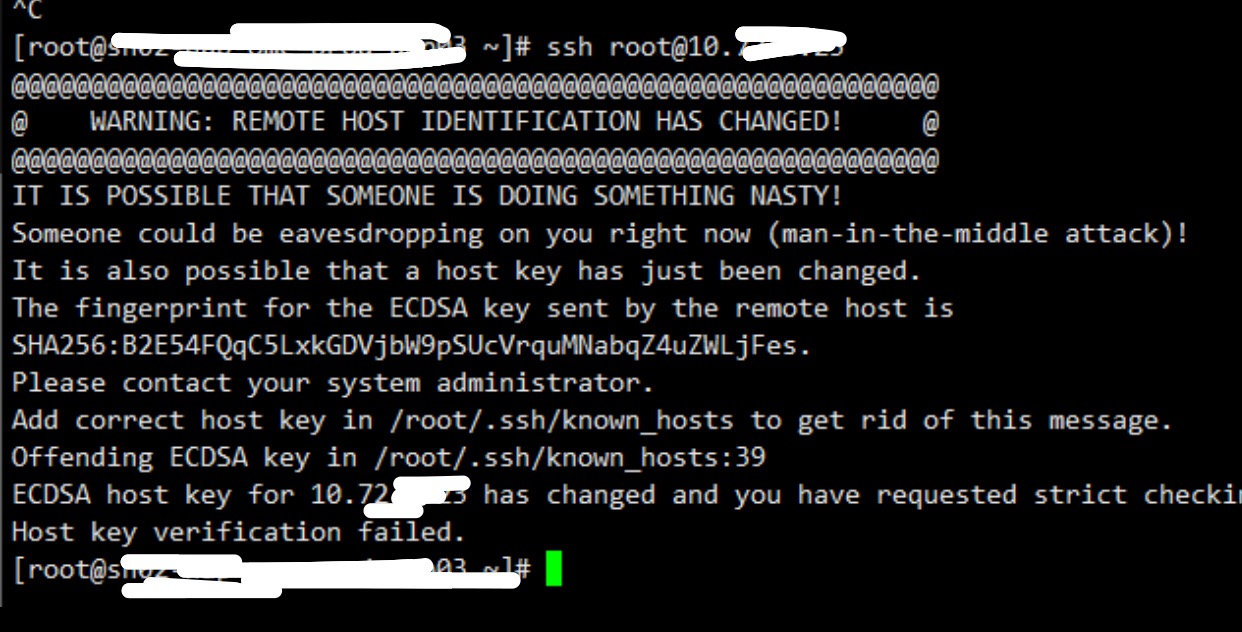
某次发现SSH登录服务器报错的事件记录 2021-05-18

需求描述
某次发现SSH登录服务器报错的事件记录 2021-05-18

user@server:~$ ssh -v root@10.6.8.56
OpenSSH_7.6p1 Ubuntu-4ubuntu0.3, OpenSSL 1.0.2n  7 Dec 2017
debug1: Reading configuration data /etc/ssh/ssh_config
debug1: /etc/ssh/ssh_config line 19: Applying options for *
debug1: Connecting to 10.6.8.56 [10.6.8.56] port 22.
debug1: Connection established.
debug1: key_load_public: No such file or directory
debug1: identity file /home/fd/.ssh/id_rsa type -1
debug1: key_load_public: No such file or directory
debug1: identity file /home/fd/.ssh/id_rsa-cert type -1
debug1: key_load_public: No such file or directory
debug1: identity file /home/fd/.ssh/id_dsa type -1
debug1: key_load_public: No such file or directory
debug1: identity file /home/fd/.ssh/id_dsa-cert type -1
debug1: key_load_public: No such file or directory
debug1: identity file /home/fd/.ssh/id_ecdsa type -1
debug1: key_load_public: No such file or directory
debug1: identity file /home/fd/.ssh/id_ecdsa-cert type -1
debug1: key_load_public: No such file or directory
debug1: identity file /home/fd/.ssh/id_ed25519 type -1
debug1: key_load_public: No such file or directory
debug1: identity file /home/fd/.ssh/id_ed25519-cert type -1
debug1: Local version string SSH-2.0-OpenSSH_7.6p1 Ubuntu-4ubuntu0.3


// 后审阅message日志,发现是系统内存不够了,重启就好了

Donate
云乞讨

OpenStack 云平台 计算节点 预留和超分 参数修改 2021-5-17

需求描述
私有云主机申请的资源大多为8C16G40G 16C64G40G这样的高配置,实际内存使用率很低,可以配置云平台的超分参数,让内存得到最大利用

# 修改计算节点的参数的配置文件
/etc/kolla/nova-compute/nova.conf

# 保留给宿主机系统的CPU核数
reserved_host_cpus = 8

# 保留给宿主机系统的内存数32GB
reserved_host_memory_mb = 32768

# CPU超分
cpu_allocation_ratio = 3

# 内存超分
ram_allocation_ratio = 1.5

# 修改完配置,重启完成
docker restart nova_compute

# 2021-5-17 修改的计算节点为
Nova_001 Nova_002 Nova_003 Nova_004 Nova_005
Nova_006 Nova_007 Nova_008 Nova_009 Nova_010
CPU 超分 参数设置 3
内存 超分 参数设置 1.5

# 部署节点IP 172.*.148.233

Donate
云乞讨

安装部署VirtualBox简略教程 2021-5-9

需求描述
多年使用VMWare平台虚拟化,这次突然想再用用VirtualBox,再来感受一下

https://www.virtualbox.org/wiki/Downloads下载Windows平台的VirtualBox软件
VirtualBox-6.1.22-144080-Win.exe 文件大小约为103MB

SwitchyOmegaSetting
VirtualBoxDownloadPage

在安装包上右击鼠标,选择以管理员身份运行

SwitchyOmegaSetting
Let’s Install VirtualBox

安装比较简单,基本上默认下一步就行,没有需要特殊设置的内容,轻松完成安装

SwitchyOmegaSetting
VirtualBoxInstall 1
SwitchyOmegaSetting
VirtualBoxInstall 2
SwitchyOmegaSetting
VirtualBoxInstallDone
Donate
云乞讨

制作获取当前设备公网地址IP的API接口,基于FLASK实现的栗子 2021-3-27

需求描述
有很多网站提供查询自己公网IP的服务,但是鉴于部分网络的隔离,部分服务的异常,还是自己弄一个比较稳定,于是有了下面的基于Flask的API

购买了一台便宜的云服务器,不管国内还是海外的
默认安装了ubuntu系统,环境需求为Python3和 Flask框架。FLASK框架很简单小巧,适合这个场景。

安装python3-pip 命令

apt-get install python3-pip 

安装flask 命令

pip3 install flask

程序源代码如下,将如下的源代码写入程序run_flask_api.py

#!/usr/bin/env python3
# -*- coding: utf-8 -*-
import flask

app = flask.Flask(__name__)

@app.route('/ip')
def index():
    ip_address = flask.request.remote_addr + '\n'
    return ip_address

if __name__ == "__main__":
    app.run(host='0.0.0.0',port=18039)

运行程序run_flask_api.py

ubuntu@server:~$ python3 ./run_flask_api.py
 * Serving Flask app "run_flask_api" (lazy loading)
 * Environment: production
   WARNING: This is a development server. Do not use it in a production deployment.
   Use a production WSGI server instead.
 * Debug mode: off
 * Running on http://0.0.0.0:18039/ (Press CTRL+C to quit)

在其他服务器GET方法测试程序API

client@serverX:~$ curl http://12.33.236.181:18039/ip
45.257.14.277
client@serverX:~$ 

备注
1. 以上文章中出现的IP,为了安全,已全部修改到不存在的IP
2. 我自己只需要对IPv6的返回,有需要的可以增加IPv6的场景

Donate
云乞讨

谷歌浏览器 火狐浏览器 使用SwitchyOmega插件教程 2021-3-2

谷歌浏览器 火狐浏览器 使用SwitchyOmega插件教程 2021-3-2

需求描述
在浏览器上实现更改自己的IP,用于访问限制单IP频率的网站,或限制需要特定访客来源IP的网站

安装浏览器插件switchyomega步骤
打开 谷歌浏览器
打开 https://chrome.google.com/webstore/category/extensions?hl=en-US
搜索 switchyomega -> 结果中作者为FelisCatus即为正确的
点击 Add to Chrome(安装到谷歌浏览器)
点击 跳过教程
点击 switchyomega插件图标
点击 Options(选项)
点击 New Profile(新增配置) -> 自定义一个配置名称(如 Socks5Proxy)
点击 Protocol(协议) -> 选择SOCKS5 -> 添加SOCKS5-IP -> 添加SOCKS5-PORT
点击 Apply Changes(应用)

SwitchyOmegaSetting
SwitchyOmegaSetting

点击 switchyomega -> 选用刚刚添加的名称为Socks5Proxy的SOCKS5代理
打开 一个检测IP地址的网站,看页面显示的IP是否变为自定义的SOCKS5的IP,确认选用SOCKS5代理有没有生效
// 网络上有很多免费的SOCKS5代理的
// 网络上公开的SOCKS5代理一般不怎么稳定,不安全,临时用可以,不能用于传递明文数据

Donate
云乞讨

Debian 10系统上编译安装Redis 2021-2-15

需求描述
下载最新的Redis稳定版本,编译安装Redis

配置安装Redis最新稳定版本,优先参考https://redis.io/topics/quickstart
本次安装到的版本为Redis 6.0.10 2021-2-15

root@server:~# mkdir -p /root/src
root@server:~# cd /root/src
root@server:~# wget http://download.redis.io/redis-stable.tar.gz
root@server:~# tar xvzf redis-stable.tar.gz
root@server:~# cd redis-stable
root@server:~# make
root@server:~# make install
root@server:~# which redis-cli
/usr/local/bin/redis-cli
root@server:~# 
root@server:~# which redis-server
/usr/local/bin/redis-server
root@server:~# cp ./redis.conf /etc/redis.conf

修改/etc/redis.conf配置文件 配置Redis的监听和一个可靠的随机密码

bind 127.0.0.1
requirepass B230dddeAE678eDb

服务器内存资源不充足的情况下,建议设置

# The above configuration tells Redis to remove any key using the LRU algorithm when the max memory of 256mb is reached.
maxmemory 256mb
maxmemory-policy allkeys-lru

启动redis服务端

root@server:~# /usr/local/bin/redis-server /etc/redis.conf

测试redis是否正常启动

root@server:~# /usr/local/bin/redis-cli -a B230dddeAE678eDb ping
Warning: Using a password with '-a' or '-u' option on the command line interface may not be safe.
PONG
root@server:~# 
Donate
云乞讨

关闭Windows7上的Flash的广告及更新问题 2021-12-22

需求描述
Flash已经不再更新,由于大陆地区很多老旧网站还依赖Flash,不得已电脑上安装了大陆特供版本的Flash,频频跳出广告
关闭Flash广告的操作

1. 打开任务管理器,关闭Flash相关进程
2. 打开services.msc,关闭Flash的服务,并设置为禁用
3. 打开C:\Windows\System32\Macromed\Flash的文件夹,删除FlashHelperService.exe,新建TXT,重命名为FlashHelperService.exe,属性只读
4. 修改C:\Windows\System32\drivers\etc\hosts,增加行127.0.0.1 flash.cn

Donate
云乞讨

Python3 处理域名解析到A记录 域名解析到CNAME记录的问题 2021-1-20

需求描述
有很多域名需要解析到A记录,有的需要解析到CNAME记录,以下两个函数解决这个问题

import dns.resolver


def get_a_answer(vDomain):
    try:
        vIP = dns.resolver.query(vDomain, 'A')
        return str(vIP[0])
    except Exception as e:
        print(e)
        print("ERROR MARK-6dDC0e1394DaEb3E")
        print("ERROR WRONG function get_a_answer() aDomainName -- aIP")
        return '1.1.1.1'


def get_cname_answer(vDomain):
    try:
        vCName = dns.resolver.query(vDomain, 'CNAME')
        return str(vCName[0].target).strip('.')
    except Exception as e:
        print(e)
        print("ERROR MARK-Efba08cfd382Aa61")
        print("ERROR WRONG function get_cname_answer() aDomainName -- aCName")
        return 'www.some.com'

Donate
云乞讨